Start on the iPhone or iPad running Mobile Mouse. Keep the device you want to control nearby and unlocked.
Open settings in the appTap the settings icon in the upper-left corner of Mobile Mouse.
Add your deviceTap Add Device, then choose the type of device you want to control.
Let the app scanFollow the guide below for the device you’re connecting to.
I WANT TO CONTROL A…
▱
CONNECT TO
Mac
When your Mac appears in the app’s device list, tap its name and wait for it to connect.
A checkmark next to its name confirms the connection. Tap Done.
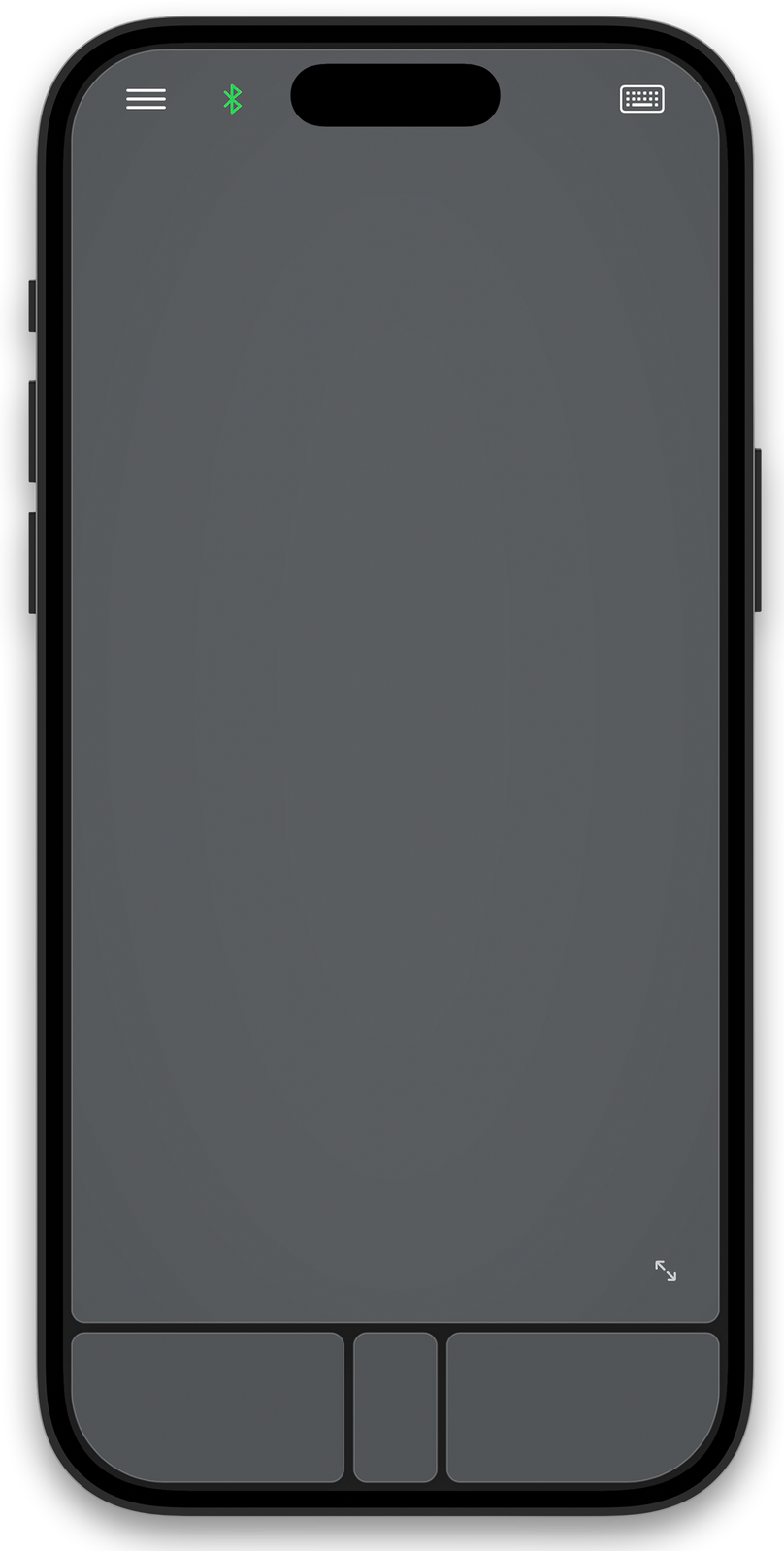
● The Bluetooth icon at the top of the trackpad screen turns green when you’re connected.
▯
CONNECT TO
iPad
On the iPad you want to control, open Settings → Bluetooth.
When that iPad appears in the Mobile Mouse device list, tap its name and wait for it to connect.
▯
CONNECT TO
iPhone
On the iPhone you want to control, open Settings → Accessibility → Touch → AssistiveTouch and turn on AssistiveTouch.
Tap Devices → Bluetooth Devices…
Select Mobile Mouse or the name of the device running the app.
Accept the pairing request on both devices.
Don’t see “Devices”? This connection method isn’t supported by that version of iOS.
⊞
CONNECT TO
Windows PC
On your PC, open Settings → Bluetooth & devices.
Click Add Device, then choose Bluetooth in the popup window.
Look for the Bluetooth name shown in Mobile Mouse and click it. If you don’t see it, click Show all devices.
A pairing request appears on your PC and your iPhone or iPad. Click or tap Pair or Connect on both devices.
Wait until you see Pairing Successful.
Once pairing is complete, you’ll be asked to name the connection.
02 / CONNECTION HELP
Let’s get you moving again.
A few things to check when a device won’t appear or reconnect.
I tapped Add Device, but my device isn’t listed.
Make sure the device you want to control is unlocked, nearby, and on its Bluetooth settings screen.
If its name doesn’t include Mac, iPad, or iPhone, turn on the switch to see all devices.
Check whether you’ve already added the device in Mobile Mouse.
On your controlling iPhone or iPad, open Settings → Bluetooth. If the other device is listed there, tap its ⓘ button, then Forget This Device, and try adding it again.
For an older device, tap Try another way… in the app and follow the instructions.
I can’t reconnect to a device I’ve already added.
Check that Bluetooth is enabled on both devices.
If you haven’t connected recently, make sure the screen on the device you want to control is on.
If that device has restarted, unlock it before trying to reconnect.
I can’t reconnect to Windows after force quitting the app.
If you can’t reconnect to Windows and may have force quit Mobile Mouse by swiping it away, remove the existing connection from both devices and the app, then pair again:
On your iPhone, open Settings → Bluetooth. Find your computer’s name, tap its ⓘ button, then tap Forget This Device.
Open Mobile Mouse → Settings → Device list. Swipe left on that computer’s connection and delete it.
On your Windows PC, open Settings → Bluetooth & devices. Find the iPhone connection and choose Remove device.
Mobile Mouse Bluetooth supports compatible Macs, iPads, and iPhones. You can use an iPhone, iPad, or Apple Watch to control a Mac, an iPhone to control an iPad, or an iPhone to control another iPhone.
To pair with a Windows PC, follow the Windows setup instructions above. Direct Bluetooth connections from Apple devices to non-Apple devices can be unreliable. A device may pair without responding to input; Windows connections may need to be set up again repeatedly.
When both Apple devices are signed in to the same iCloud account, they can pair automatically without a confirmation prompt. This doesn’t mean someone else can connect without permission: a connection from another person’s device requires your approval.
Is the data I send through the app secure?
The Bluetooth connection is encrypted to protect the text you type. Mobile Mouse does not store or collect user data.
MORE WAYS TO CONNECT
Small dongle. More possibilities.
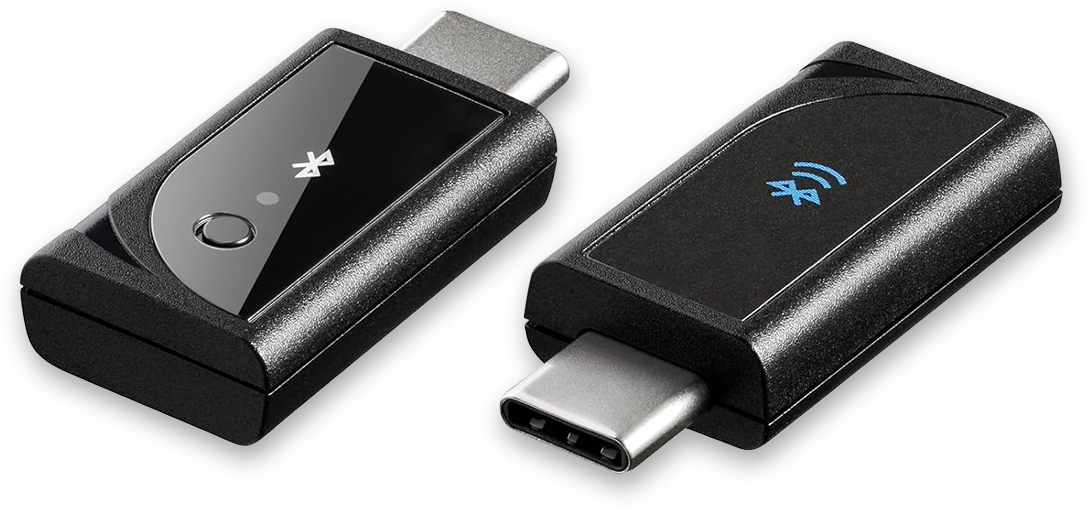
Using the optional USB-C dongle? Its setup has a guide of its own.